Your Android field companion

Ready for
the real world.

A question to work through. A place to explore. Something useful to learn.

Bring on-device AI, saved maps and reference books together in one app that feels like yours.

Choose and download compatible models, maps and books before going offline.

Android · 0.2.2 release candidate

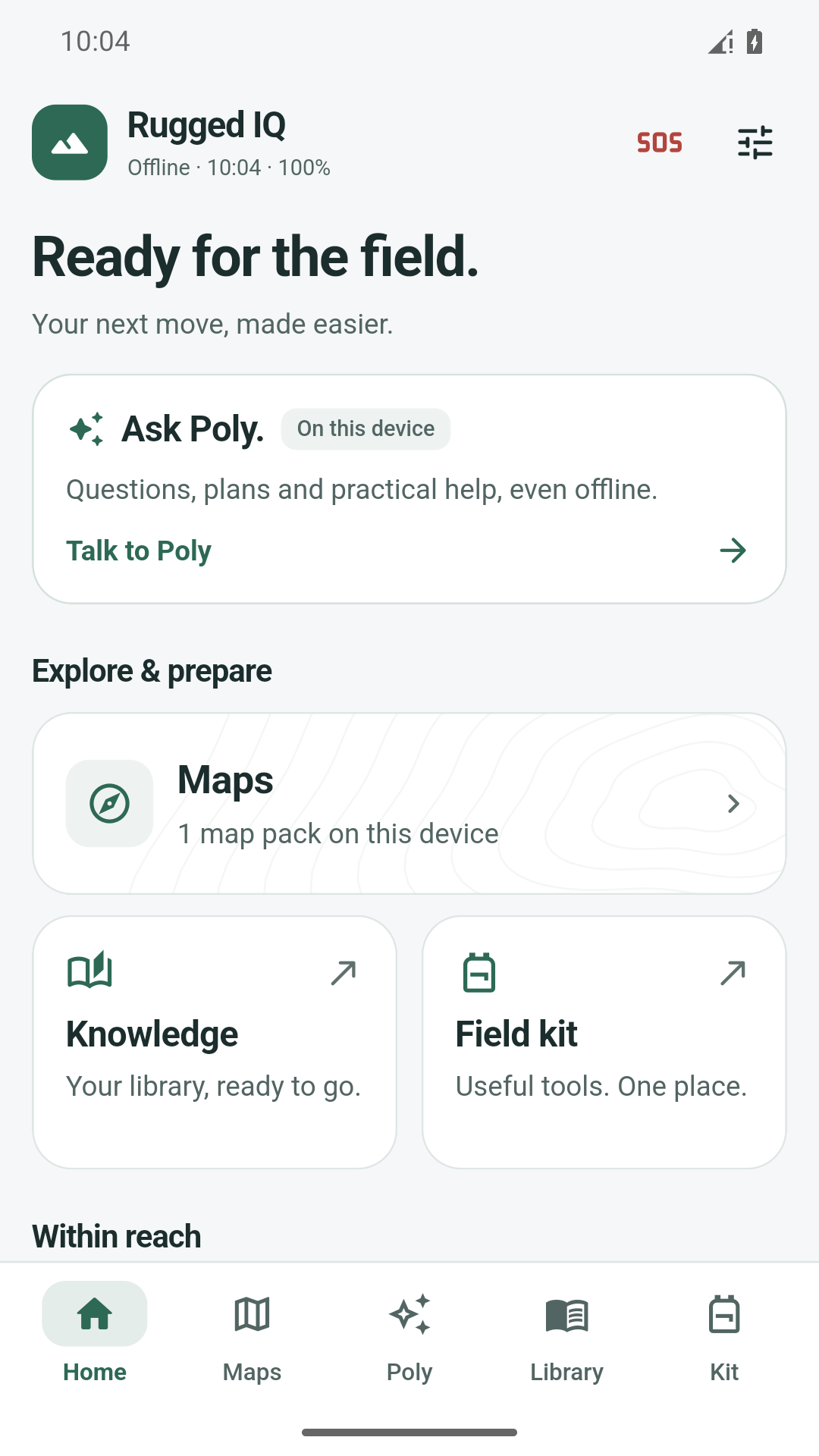
RuggedIQ's actual Playbook home screen, with Ask Poly, Maps, Knowledge, Field kit and five navigation tabs.
The real app. A little more organized.

Useful things, within reach

A thoughtful kit.
For your kind of day.

Start with what matters to you. Add a model, a region or a reference collection—and leave room for the rest of your day.

01Poly / AI

A little space
to think it through.

Ask Poly a question, sketch out a plan or pick up a conversation where you left it. Choose a compatible model that runs on your phone.

Photo questions use a compatible vision model and its paired projector. Models are separate downloads; speed and memory needs vary. AI can be wrong.

Start with a model that fits

02Maps / Your region

Know what
you’re bringing.

Save a map of the region you choose. Activate it, explore its coverage and keep that area close when you’re away from a connection.

Your saved map works within its own coverage. Online place search, routing and the satellite overview need a connection. Type locally; choose Search when you want an online result.

Prepare a region before you go
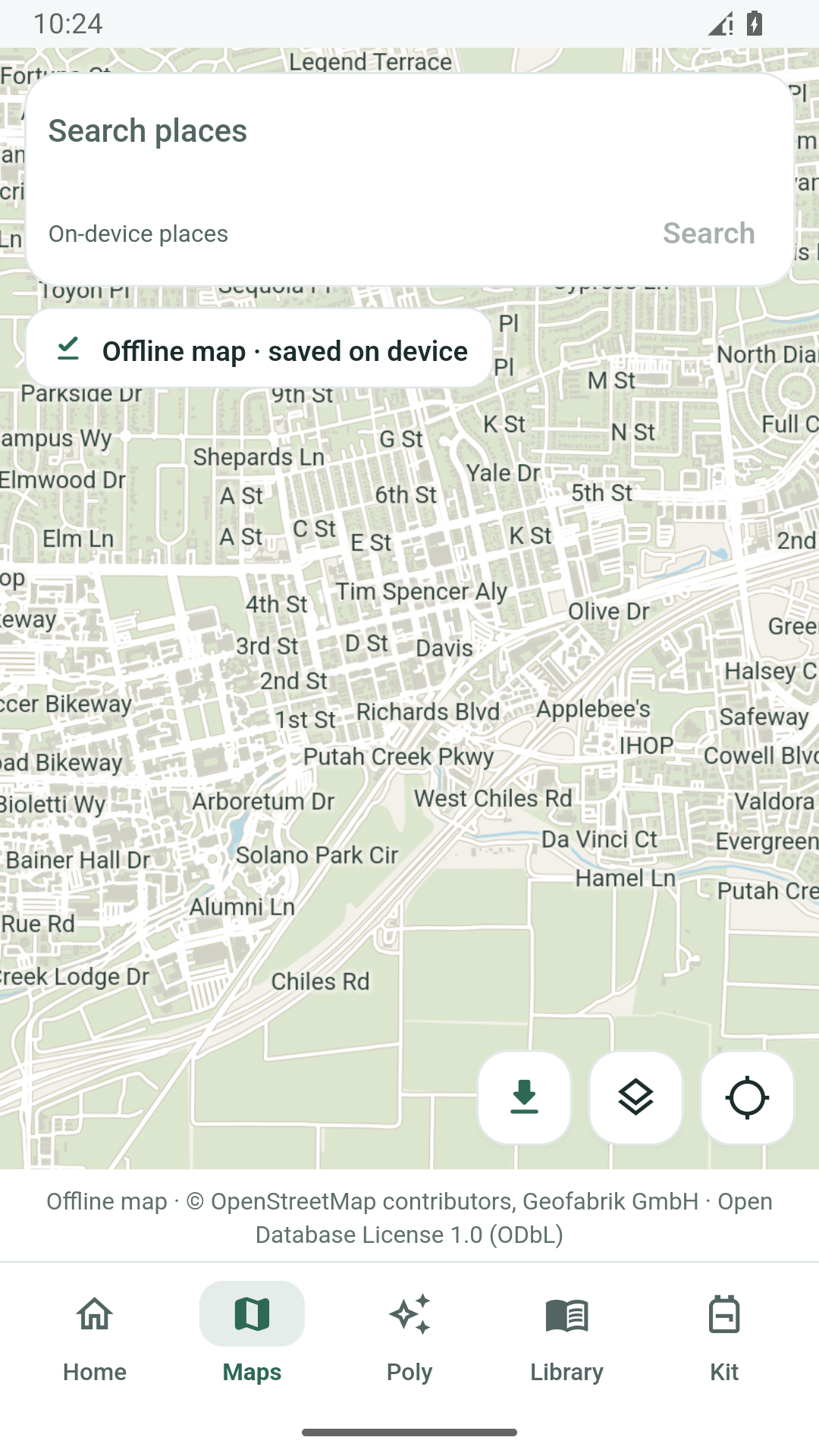
RuggedIQ displaying the downloaded Davis map offline, with roads, buildings and source attribution.
Actual Davis map, shown offline. Map data © OpenStreetMap contributors, Geofabrik GmbH. Open Database License 1.0 (ODbL).
03Library / What you want to learn

Bring a library.
Choose its size.

Find a reference collection in the Kiwix catalogue or add a supported ZIM source link. Check the source and size, download it, then open real articles on your device.

Start with one small collection. Add more when it’s useful. You can also import compatible files you already have; content and licences belong to their publishers.

Make space for something useful

A little preparation goes a long way

Pack your digital kit.
Before you head out.

Offline starts while you’re still connected. Three small steps make the difference.

  1. 01

    Choose what fits.

    Pick an AI model suited to your phone, a map region and a reference collection. Check memory, storage and download sizes.

  2. 02

    Download. Check. Open.

    Use Wi-Fi. Browse the catalogue or preview a supported source with From link. Let the app check the file, then open or activate it.

  3. 03

    Give offline a try.

    Turn off Wi-Fi and mobile data. Ask a text question, open an article and inspect your saved region before you rely on them.

Familiar, with your own feel

Your app.
Your kind of calm.

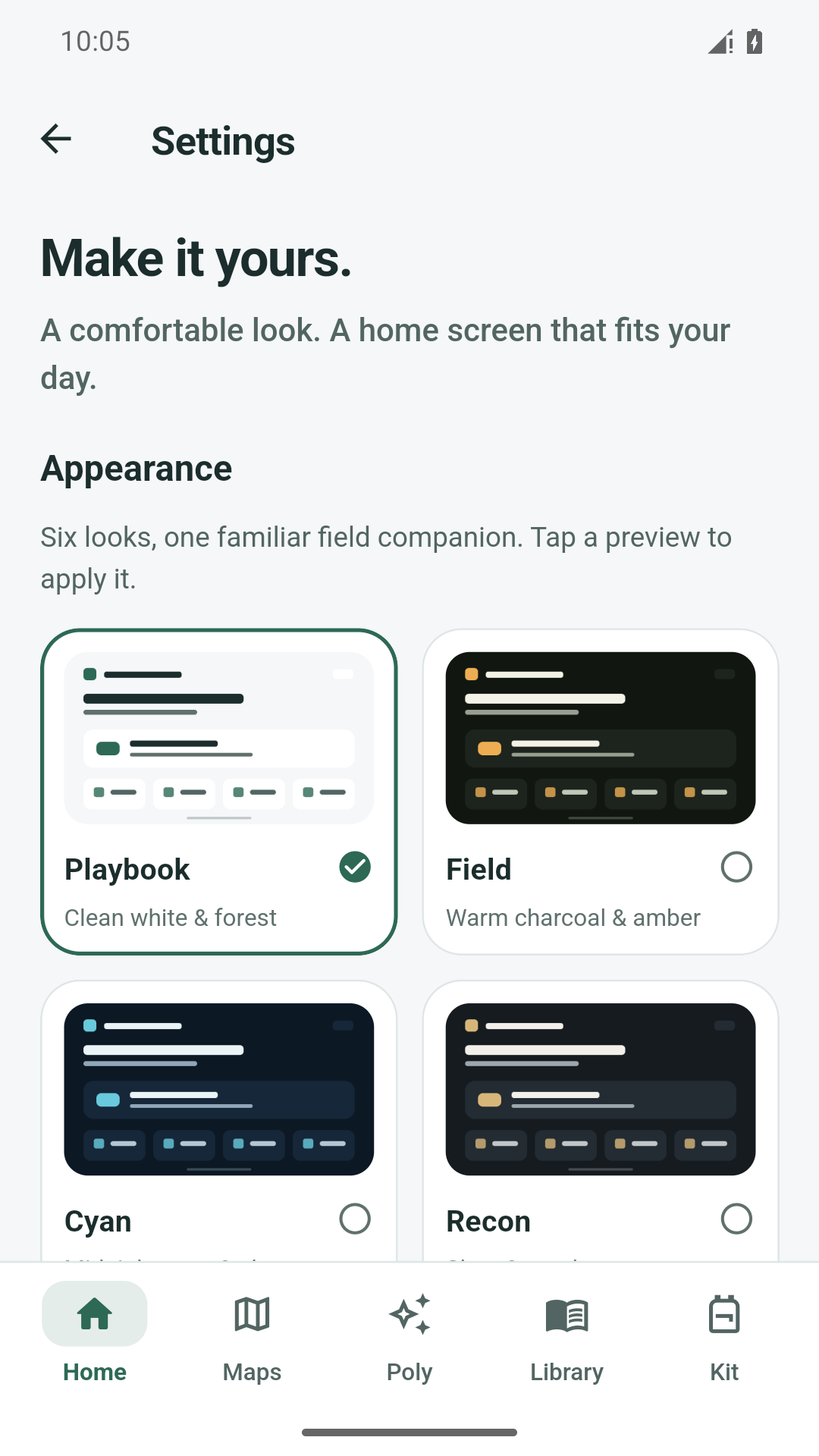
Bright and clear, or warm and low-key. Choose from six themes and two home layouts inside RuggedIQ. Your preference is saved for next time.

This previews the website and actual home screens. Change your installed app’s appearance in Settings.

Playbook · clean white and forest.

Playbook · Field · Cyan · Recon · Forest · Night red

Actual RuggedIQ Settings screen showing the Playbook, Field, Cyan and Recon theme options.
Appearance settings in the native app.
RuggedIQ's actual Playbook home screen, with Ask Poly, Maps, Knowledge, Field kit and five navigation tabs.
Playbook home · actual app capture.

A few things to know

Good questions.
Clear answers.

Does everything work without internet?

A compatible installed AI model, downloaded reference articles and your saved map region can work offline after setup. New downloads, online search, routing and weather forecasts need a connection. Device dictation may use an online service. Nearby communication depends on compatible devices, permissions and conditions.

Will the AI run on my phone?

That depends on the model, available memory and hardware. Choose AI shows supported options and estimates of fit. Start small, leave free storage and allow time for loading. Photo questions need a compatible vision model and matching projector; they can be slower than text.

Can I bring my own maps and books?

Yes. Import supported files using Android’s picker. ZIM archives are supported for offline books. Saved maps use compatible raster, Shortbread or OpenMapTiles MBTiles; a ZIP containing one supported MBTiles map is also supported. An arbitrary map file or web page is not necessarily compatible.

Where can I get RuggedIQ?

Version 0.2.2 is a release candidate. Google Play registration is planned; there is no public Play Store listing linked here yet. We’re preparing the release and its compatibility checks. You can ask about the app or get help through our support form.

What stays on my device?

Core local conversations, installed files and settings stay on the device in their normal workflows. Connected features send the information needed for that request. AI reports are optional and let you review the selected answer before submitting. Read the privacy policy for the actual data flows and retention controls.

Can I use it for food identification or emergencies?

RuggedIQ is for preparation and reference. AI answers and image identification can be wrong. It is not a medical device or emergency service. Don’t use a photo or AI answer to decide whether something is safe to eat, diagnose a condition or replace qualified care and local emergency advice.

Make a little room for ready

Take the useful things.
Leave the clutter.

Prepare your field kit